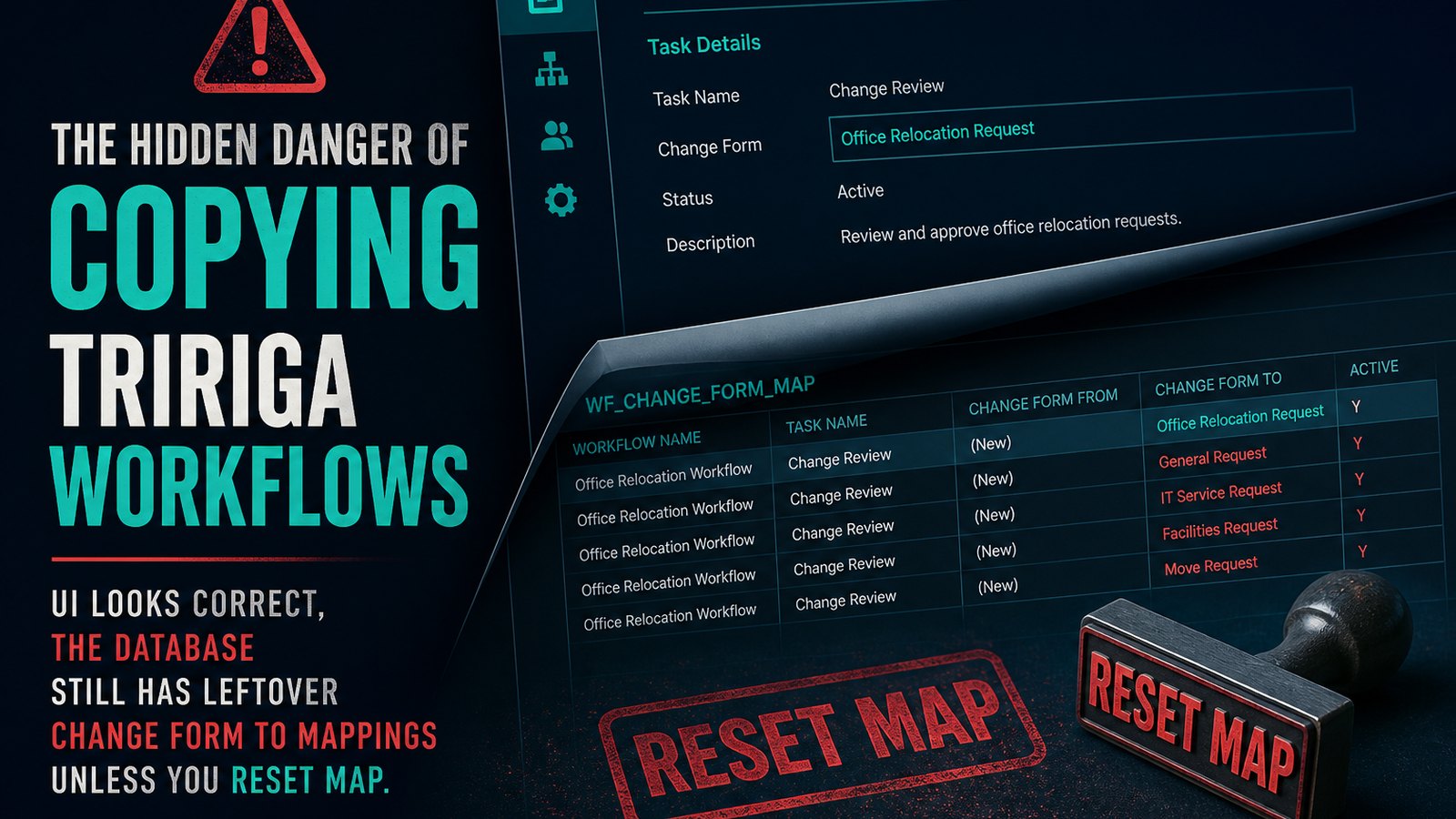
There are many times in TRIRIGA development when it makes sense to copy an existing workflow. It can be a great time saver when you need to perform the same functionality to a different Business Object (BO). This happens to be the exact scenario that a colleague of mine ran in to this week. However, copying a workflow is not without risk. The platform doesn’t work under the hood how one would expect it to. It is this fact that can cause you great trouble if you don’t know how it really works. Let me set the back story for you.
A client that we are working with has been using TRIRIGA for close to a decade now. During that time, they have had many different people work in their TRIRIGA environments. At this point their environments are a mixture of different naming conventions, with some object using the old naming convention and some using the new. Additionally, there are some objects that shouldn’t be in the system.
Before form revisions were maintained in the system, it was a common practice to make a copy of any out of the box (OOTB) form that was about to be customized. This was mainly done in case you needed to go back and see how a form looked OOTB before the customizations. These copies should never be published. Unfortunately, in this environment, they were. This lead to several issues over the years as some records were using the correct customized form, and some were using the copied forms.
The customer is wanting to upgrade their environment to the latest version of the software. They have done platform upgrades over the years, but here has only been one application upgrade and that was from a 2.7.x application to the 3.0 application. Since their environment is such a mess we decided to do a cleanup project for them to bring their environments to a consistent naming convention and cleanup the old copied forms that were in the system. It was decided to update the naming convention used to the TRIRIGA Dash notation to have a better understanding of what objects are custom versus what are customized out of the box. This will make it easier to perform the application upgrade as it will cut down the amount of time needed for analysis.
The cleanup project was performed in the development environment and the changes were moved to the QA environment where a more thorough testing could be done to make sure that things weren’t broken by the changes. During the testing it was discovered that they have several old java integrations where the triFormNameSY field was being used for branching the logic. The triFormNameSY field does not automatically update when the Form’s name is changed. Each individual record needs to be updated.
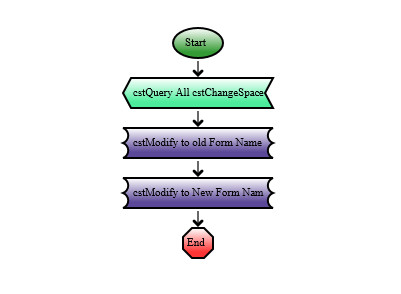
The fix for this isn’t difficult. All that needs to be done is to create a patch helper to get the records, change the form that they are using to a different form, then change the form they use back to the correct one. It’s actually a very simple workflow with just three tasks, as you can see below.

Since this same functionality was needed for several different objects, copies of this workflow were made. They query task updated to query the correct objects, then the modify metadata task mappings were edited and set to the correct value. My colleague performed these tasks and started running the patch helpers to update the records. When they went to check their work by running a TRIRIGA query against the records to filter on the correct triFormNameSY field value, no records were returned. A query using the old triFormNameSY also turned up no results. It was at this point that my colleague reached out to me in a panic stating that the records were gone.
If you know me, you know that I love a good TRIRIGA puzzle. I started off by looking at the workflow and looking at the task properties. Everything was set correctly and should have worked flawlessly. As you can see below the modify metadata task pointed to the query task and then the proper form name was listed in the Change Form To attribute.

Over the years I have ran across many issues where everything looks correct in the front end (the user interface), but in the back end (the database) you can see that it is really broken. So, I jumped in to the database to see what I could find. Fortunately, I’ve already written a SQL script that will dump out the settings of a modify metadata task for me. It’s much nicer than having to manually go through each individual setting one by one to figure out what a task is setting. I executed my script against the workflow and instead of seeing just two results, one for each task, I saw five results. Do you see the problem?
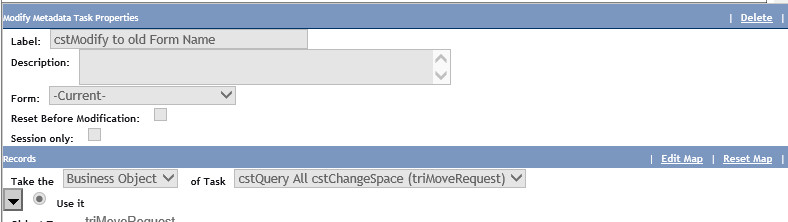
It’s not possible to set the Change Form To attribute to more than one value. However, more than one value existed in the database. Because there was more than one value, the system just picking one at random to set, or perhaps it was doing each value with the result being whatever the last value it happened to use.
I did a quick check in the database to get the unique triFormNameSY field values for my change space requests and I found records with cst-triCapitalProject instead of cst-triChangeSpace. I asked my colleague if they copied the workflow, they said yes. I then asked if the clicked on the Reset Map for the modify metadata tasks after copying the workflow. They said no. The puzzle was now solved. I knew exactly what the problem was and how it occurred.
Whenever the underlying business object for a workflow task changes, if the tasks has mappings it should always be reset first and then go in and set the correct settings. Intuitively you’d think the TRIRIGA platform would clear out any mappings once the underlying BO is changed. It however, does not. This issue has been around the whole time that I’ve been working in TRIRIGA. I practice what I call defensive programming when it comes to TRIRIGA. I’ve developed processes and procedures that I follow that protect me from these types of mistakes. This is one where I’ve trained myself to always reset the map and then go in and set my settings whenever I change the underlying BO of the task. Because I always do that, I don’t run in to this issue anymore.
I had my colleague modify the workflows, clear the mappings and redo them. After that I ran my SQL script against the workflows to ensure that there were no junk settings left around. As you can see below, everything looked good now and we are ready to test again once the environment gets refreshed.

The lesson learned here is to always reset your mappings whenever the underlying BO of a task, that has mappings, is changed. I’ve seen this happen with the Create Records task, Modify Records task, and the Modify Metadata task. My colleague learned this one the hard way. Hopefully you can learn from this and not make the same mistake. As you can see the problem can’t be seen from the front end, making it very difficult to troubleshoot if you don’t have the knowledge of the database to identify it. So, save yourself hours of troubleshooting, and just Reset Map.
Comments (0)
No comments yet.
Sign in to comment.